Open Source Society Malta
0
  • About Us
    • About Malta
    • Statute of OSSMalta
    • Partners And Sponsors
    • Publish on OSSMalta
  • Jobs
    • Job Dashboard
    • Company Dashboard
    • Register a Company
    • Post a Job
    • Job Listing Companies
  • Events
    • My Events
    • Add an Event
  • Blog
    • LoRa
    • Education
    • Gaming
      • Retro
      • Steam
    • Hardware
      • AMD
      • D.I.Y Electronics
      • Electronic Boards
      • Intel
      • Mobile
      • Nvidia
      • PC & Laptops
      • Raspberry Pi
      • Tablet
    • How-To’s
    • Linux
      • Android
      • Mint
      • Ubuntu
    • Malta
    • Non-OSS
    • Security Update
    • Server
      • Webhosting
    • Video
  • Services
    • LoRa
    • Blacklists
    • Download
      • Desktop
      • The Chip Flash Collection
  • Sub-Sites
    • LoRa
    • Airline Manager 4 – Game Clan
    • Radio Waves
  • Contact
  • Member Login
    • Join Us
    • Profile

Useful Links

  • Maltese Spell Checker
  • Contribute to OSSMalta
  • Contact The Community
  • Privacy policy
info at ossmalta.eu
  • Maltese Spell Checker
  • Radio Waves
  • All Deals
  • AM4
  • Malta Craft (Minecraft)
Open Source Society Malta Open Source Society Malta
  • About Us
    • About Malta
    • Statute of OSSMalta
    • Partners And Sponsors
    • Publish on OSSMalta
  • Jobs
    • Job Dashboard
    • Company Dashboard
    • Register a Company
    • Post a Job
    • Job Listing Companies
  • Events
    • My Events
    • Add an Event
  • Blog
    • LoRa
    • Education
    • Gaming
      • Retro
      • Steam
    • Hardware
      • AMD
      • D.I.Y Electronics
      • Electronic Boards
      • Intel
      • Mobile
      • Nvidia
      • PC & Laptops
      • Raspberry Pi
      • Tablet
    • How-To’s
    • Linux
      • Android
      • Mint
      • Ubuntu
    • Malta
    • Non-OSS
    • Security Update
    • Server
      • Webhosting
    • Video
  • Services
    • LoRa
    • Blacklists
    • Download
      • Desktop
      • The Chip Flash Collection
  • Sub-Sites
    • LoRa
    • Airline Manager 4 – Game Clan
    • Radio Waves
  • Contact
  • Member Login
    • Join Us
    • Profile
Open Source Society Malta > Linux > ubuntu > Automatic Login > Enable Automatic Login in Ubuntu 24.04 & Flavors
Automatic LoginHow-ToHowtosLinuxubuntuubuntu 24.04

Enable Automatic Login in Ubuntu 24.04 & Flavors

Posted by WarMax356 May 14, 2024
Shares
READ NEXT
Colorful circular camera aperture logo on a black background.
How to Install Darktable 5.6.1 via DEB in Ubuntu 26.04, 24.04, 22.04
Contents
Option 1: Use Graphical Option to Enable Auto-Login
For GNOME (default in Ubuntu 24.04)
Ubuntu MATE 24.04
KUbuntu 24.04 / Ubuntu Studio 24.04
Ubuntu Unity 24.04
Ubuntu Cinnamon 24.04
Option 2: Enable Auto Login by editing Config file
Find out Which Display Manager is in Use
For GDM3 (GNOME Display Manager), default in Ubuntu
Enable Auto-login for LightDM
Enable auto-login for SDDM

This simple tutorial shows how to automatically login a user account in Ubuntu 24.04 and its flavors, such as KUbuntu 24.04, XUbuntu 24.04, Ubuntu MATE 24.04, and Ubuntu Unity 24.04.

The auto login feature is handled by the display manager service in most Linux. It varies depends on your desktop environment and user configuration.

Here I’m going to show you how to enable this feature, either using graphical setting option or by editing config file from command line. Choose either one that you prefer.
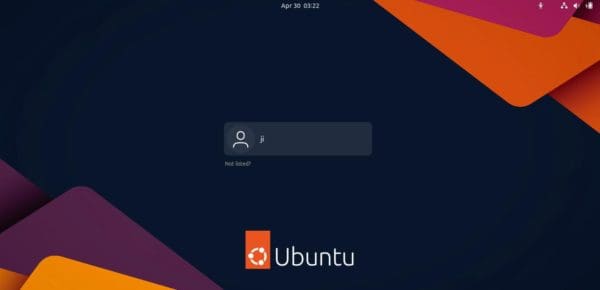
Option 1: Use Graphical Option to Enable Auto-Login

Most Desktop Environments provide their own setting options for enable this behavior.

For GNOME (default in Ubuntu 24.04)

For the default GNOME Desktop, simply press Super (Windows Logo) + S to trigger top-right system status menu (aka Quick Settings), then click open “Settings”.

Then, navigate to System in left, and click on Users in right. Click “Unlock” and type your password to authenticate. Finally, select the user account and turn on the “Automatic Login” option for it.

For Ubuntu 22.04 and earlier, “Users” setting is available in left rather than ‘System’ page.

Ubuntu MATE 24.04

For Ubuntu MATE 24.04, just launch Control Center from start menu. When it opens, navigate to Administration -> MATE User Manager.

In the next dialog, choose your user account, click “Unlock” and authenticate with your password, finally turn on the “Automatic login” toggle option.

KUbuntu 24.04 / Ubuntu Studio 24.04

For KUbuntu and Ubuntu Studio with Plasma Desktop, launch System Settings then search & open Login Screen from left.

Then click Behavior button in bottom, finally turn on “Automatically log in” checkbox, choose username and session. For choice, you may enable “Log in again immediately after logging off”.

Ubuntu Unity 24.04

For the Unity desktop, open Settings and navigate to User Accounts. In pop-up dialog, click “Unlock” (need authenticate with user password), choose user from left, and finally turn on “Automatic Login” toggle option.

Ubuntu Cinnamon 24.04

For Cinnamon Desktop environment, open System Settings and click Login Window under Administration section.

In pop-up dialog, switch to Users tab. Under “Automatic login”, inset the username you want to login automatically, and type a number if you want to delay the login with a few seconds.

Option 2: Enable Auto Login by editing Config file

For XUbuntu, LUbuntu, and other Linux Desktop that you cannot find a graphical option, here’s how to enable auto login by editing the config file.

Find out Which Display Manager is in Use

Each desktop environment has its own default display manager. They are:

  • gdm3 – GNOME Display Manager, that is default in GNOME Desktop (the default in Ubuntu).
  • LightDM – Light Display Manager, default in XUbuntu, Ubuntu MATE, Ubuntu Cinnamon, Ubuntu Unity.
  • SDDM – Simple Display Manager, that is default in KUbuntu, Ubuntu Studio, LUbuntu.

In case you’ve changed something, you can press Ctrl+Alt+T to open terminal, and run command to check which display manager is currently in use:

systemctl status display-manager

For GDM3 (GNOME Display Manager), default in Ubuntu

1. For gdm3 display manager that’s in use by default in GNOME Desktop, open up a terminal window (press Ctrl+Alt+T in Ubuntu), and run command to edit the config file:

sudo editor /etc/gdm3/custom.conf

Replace editor with your system text editor, or use nano that works in most Linux.

2. When file opens in text editor, add following line (or un-comment the lines by removing # at the beginning) under [daemon] section (replace user “ji” to yours):

AutomaticLoginEnable = true
AutomaticLogin = YOUR_USERNAME

Or, use the lines below instead that auto-login with delay:

TimedLoginEnable = true
TimedLogin = YOUR_USERNAME
TimedLoginDelay = 10

Finally, press Ctrl+S to save file, Ctrl+X to exit. The change will apply in next boot.

Enable Auto-login for LightDM

1. For LightDM that is default in XUbuntu, Ubuntu MATE, Ubuntu Unity, and Ubuntu Cimmaon, open terminal (Ctrl+Alt+T) and run command:

sudo editor /etc/lightdm/lightdm.conf.d/autologin.conf

The command will create a “autologin.conf” file (change name to whatever as you want) under /etc/lightdm/lightdm.conf.d directory, and edit with system default command line nano text editor.

2. When file opens, add following lines and save it:

[SeatDefaults]
autologin-user=YOUR_USER_NAME
autologin-user-timeout=5

Here autologin-user-timeout=5 is optional to show login-screen for 5 seconds until auto-login, in case you want to log into another user. When done editing, press Ctrl+S to save, and Ctrl+X to exit.

Enable auto-login for SDDM

1. For SDDM display manager that is default in KUbuntu, Ubuntu Studio, LUbuntu, run the command (Ctrl+Alt+T) below instead to edit config file:

sudo editor /etc/sddm.conf.d/auto-login.conf

Or edit /etc/sddm.conf if your system have it out-of-the-box.

2. When file opens, in text editor add following lines (skip [Autologin] if already exist):

[Autologin]
User=YOUR_USER_NAME
Relogin=true

Here Relogin=true is optional feature that automatically log in back once you log out. Sadly, SDDM seems not supporting auto-login delay at the moment of writing. See this request page.

When done editing the file, press Ctrl+S to save file and Ctrl+X to exit. Auto-login will apply at next boot.

Tags: Curated How-tos linux ubuntu

What’s your reaction?

Love
0
Sad
0
Happy
0
Sleepy
1
Angry
0
Dead
0
Wink
0
Shares
Share on Facebook Share on X Share on Pinterest Share on Email
WarMax356 May 14, 2024
Previous Article Auto Reset User Account to Original State in Ubuntu 24.04
Next Article Install LibreOffice Office Suite in Ubuntu 24.04

Advertisment:

Hosting & Technical Support Sponsor

Advertisement

You Might Also Enjoy

Blue and white globe with a film strip wrapped around it on a black background.
How-ToLinuxNewsubuntuvideo editor

OpenShot 4.0 Released with Audio/Video Recording & Local AI Masks

<div>OpenShot, the free open-source Qt video editor, released new major 4.0 version on Sunday. The new version introduced new Color View, Audio and Video recording, new AI based masks, and many other features. First, the released added ability to record audio and video from your microphone, desktop screen, and webcam. By enabling Recording View under […]</div>

August 31, 2026
UI card showing an illustrated orange flower with green leaves on a gradient background and four gold stars below (rating).
How-Toimage viewerLinuxNewsubuntu

gThumb 4.0 RC Released with Improved Touchpad Support

<div>gThumb, the GNOME image viewer and organizer, released the Released Candidate for the next 4.0 major version. As you might know, gThumb 4.0 is the next major release that features GTK4 plus LibAdwaita port for a modern user interface looks native in recent GNOME desktop. Since the last Alpha, it also supports playing WebP and […]</div>

August 31, 2026
Blue three-drawer filing cabinet icon.
GnomeHow-ToLinuxNewsubuntu

GNOME Sushi File Previewer 51 RC Released with More Functions

<div>Sushi, the file previewer application for GNOME Desktop, released the 51 RC version today. The last 51 alpha & beta releases of this macOS Finder’s Quick Look style application ported the app to GTK4 plus LibAdwaita, so when you pressing Space on a file, it pops-up a modern native preview window that follows system light […]</div>

August 30, 2026
Ubuntu logo inside a blue Windows-style tile on a black background.
gameHow-ToLinuxNewsubuntu

DXVK 3.1 Released with DXGI Incremental Presentation & Intel Extensions

<div>DXVK, the open-source translation layer that converts Windows Direct3D calls into Vulkan calls on Linux, released new 3.1 version a day ago. The new library version introduced some new features and fixes for running Windows apps/games on Linux through Wine, Proton and Steam Play. The new version added basic support for DXGI present parameters, a […]</div>

August 29, 2026

Open Source Society Malta

A Malta-based community for the Open-Source Initiative, find out more here.

Community support is available by Contacting us online

Stay up-to-date

Sign up to our newsletter
We hate spam too! - you'll just get our newletter updates based on your settings

Newly listed Jobs

  • GIG

    Senior Big Data Engineer

    • Malta
    • GIG
    • Full Time
  • 2026-237 – Technical Architect

    • Anywhere
    • Full Time
  • Heritage Malta

    Coordinator (Collections Management)

    • Malta
    • Heritage Malta
    • Full Time

Supported by:

 
MEYN Energy
SEEED Studio
Software Heritage
GO PLC
TrueNAS
Ubuntu | Canonical
OPNSense
 
Open Source Society Malta Open Source Society Malta
Some rights reserved - Designed by Warmax356

Our website uses cookies to improve your experience. Learn more about: Cookie Policy

Accept