


Minecraft offers an endless sandbox for creativity and adventure. But did you know you can profoundly enhance your personal gameplay experience without needing a custom server or complex setup? The true power of Minecraft often lies in its vibrant open-source community, which provides incredible client-side mods that transform your visuals, boost performance, and add quality-of-life features to your vanilla Minecraft world.
At OSSMalta, we celebrate the spirit of open collaboration. Minecraft is a shining example of how community-driven development can enrich a game directly on your computer. Let’s dive into some of the best open-source tools that can revolutionize your blocky world!
Why Choose Open Source for Your Minecraft Adventure?
Embracing open-source solutions for Minecraft offers distinct advantages for individual players:
- Cost-Free & Accessible: Most open-source mods are completely free, making extensive customization accessible to everyone.
- Community Driven: Developed and maintained by passionate communities, these projects often have excellent support, frequent updates, and rapid innovation.
- Transparency & Control: The open nature of the code means you can inspect it and understand how it works, giving you more control over your game.
- Flexibility & Performance: Tailor your game exactly how you want it, with options for massive performance boosts, stunning visuals, and convenient new features, all running locally on your machine.
The Ecosystem: Mods and Loaders for Client-Side Play
Before we jump into the list, it’s good to understand the terminology for client-side modifications:
- Mods: Modifications that add new content (blocks, items, creatures) or alter game mechanics, running solely on your computer.
- Mod Loaders (e.g., Fabric, Forge): Essential frameworks that allow multiple mods to run together. Most open-source client-side mods are built for one of these.
- Clients (e.g., Prism Launcher): Modified versions of the Minecraft game launcher or client, often including performance enhancements or built-in utilities for easier mod management.
Top 10 Client-Side Open-Source Minecraft Enhancements
Here are our picks for essential open-source tools that will revolutionize your personal Minecraft experience. These are designed to work with vanilla Minecraft servers, enhancing only what you see and do on your computer. Note that compatibility often depends on your Minecraft version and chosen mod loader (Java Edition typically uses Fabric or Forge).
Performance Boosters ⚡
These mods are fantastic for making Minecraft run smoother, especially if you’re building massive bases or exploring complex worlds. They are often used together for maximum impact.
- Sodium (Performance Mod)
- What it is: A highly optimized rendering engine that dramatically improves Minecraft’s frame rates (FPS) and reduces micro-stuttering. Essential for a smoother experience, especially on lower-end hardware or with graphically intensive settings.
- Ease of Use: 4/5 (Relatively easy to install with Fabric)
- Get it here: Modrinth – Sodium
- Lithium (Performance Mod)
- What it is: Another Fabric-based optimization mod, Lithium focuses on improving various client-side performance aspects of Minecraft’s game logic. It complements Sodium by tackling different bottlenecks, resulting in an even smoother experience.
- Ease of Use: 4/5 (Similar to Sodium, installed with Fabric)
- Get it here: Modrinth – Lithium
- Phosphor (Lighting Optimization)
- What it is: Optimizes Minecraft’s lighting engine, leading to better performance without sacrificing visual quality. Great for reducing lag related to light updates within your loaded chunks.
- Ease of Use: 4/5 (Easy to install with Fabric)
- Get it here: Modrinth – Phosphor
Core Utilities & Quality of Life ✨
These mods improve your gameplay experience through enhanced information, visual cues, or useful tools that operate entirely on your client.
- Fabric API (Modding API)
- What it is: While not a mod itself, Fabric API is a foundational open-source library required by many Fabric-based mods to function. It provides common functionalities for mod developers to build upon.
- Ease of Use: 5/5 (Install like any other mod; often automatically included by modern launchers)
- Get it here: Modrinth – Fabric API
- Just Enough Items (JEI) (Recipe & Item Viewer)
- What it is: The quintessential item and recipe viewing mod. JEI allows you to see all available items in the game and how to craft them, smelt them, or use them. Indispensable for learning new recipes or navigating vast item lists.
- Ease of Use: 5/5 (Very intuitive, integrates directly into your inventory screen)
- Get it here: CurseForge – JEI
- JourneyMap (Minimap & World Map)
- What it is: An invaluable in-game minimap and full-screen world map mod that automatically maps out your explorations, allows setting waypoints, and displays mobs and entities around you. Perfect for navigation and exploration!
- Ease of Use: 4/5 (Easy to install, simple controls)
- Get it here: CurseForge – JourneyMap
- Litematica (Schematic Mod)
- What it is: A powerful client-side mod that allows you to load schematic files (blueprints of builds) into your world as holograms. This makes recreating complex constructions or large-scale projects much easier, guiding you block-by-block.
- Ease of Use: 3/5 (Can take a little time to learn the controls, but extremely rewarding for builders)
- Get it here: CurseForge – Litematica
- Xaero’s World Map & Minimap (Mapping Suite)
- What it is: A popular open-source mapping solution, often praised for its aesthetic and detailed world map. It works well independently or alongside other performance mods.
- Ease of Use: 4/5 (Easy to install and use)
- Get it here: CurseForge – Xaero’s World Map & CurseForge – Xaero’s Minimap
- Customizable Elytra (Cosmetic Mod)
- What it is: A fun, client-side open-source mod that allows you to apply different textures to your Elytra (Minecraft’s wings), giving you a personalized look while soaring through the skies.
- Ease of Use: 5/5 (Very easy to install and use)
- Get it here: CurseForge – Customizable Elytra
- AppleSkin (Food & Hunger Info)
- What it is: A simple but incredibly useful mod that adds visual information about food saturation and healing to the HUD. See exactly how much hunger and saturation a food item will restore.
- Ease of Use: 5/5 (Just install and it works!)
- Get it here: CurseForge – AppleSkin
Elevating Your Visuals with Shaders & Modpacks 🌟
Want to make Minecraft look breathtaking? Open-source tools can help with that too, all client-side!
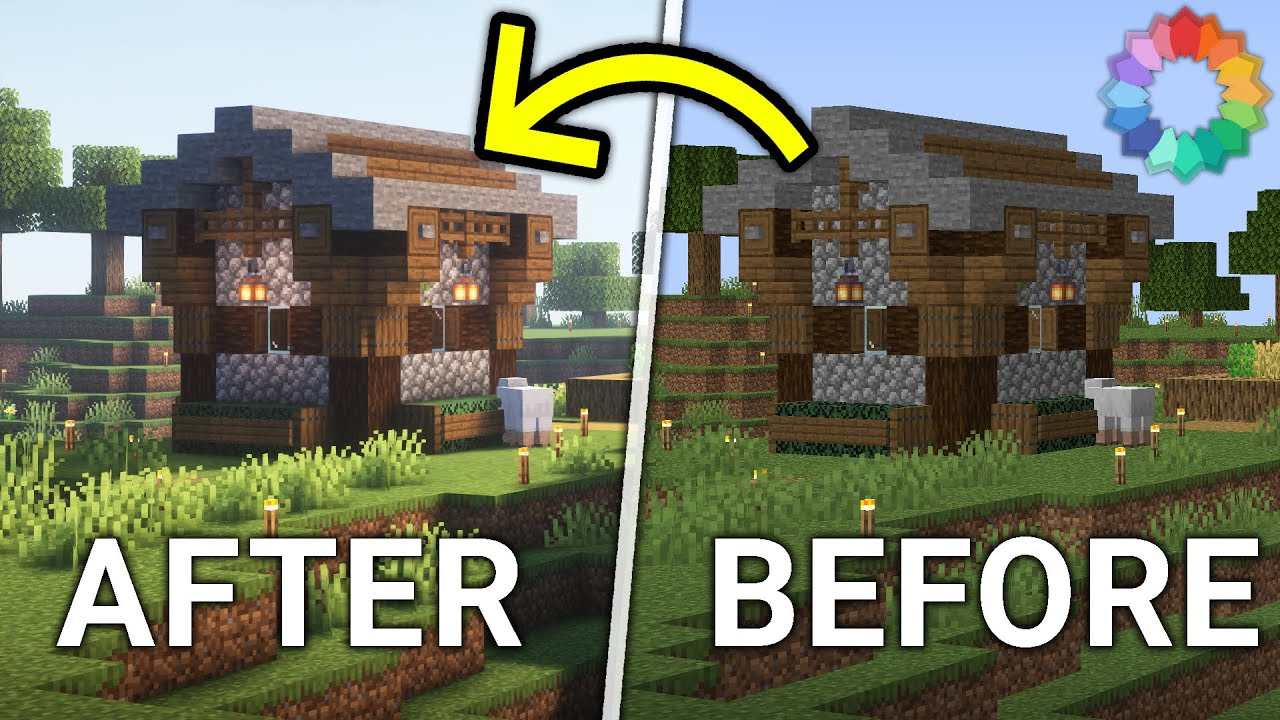
- Shaders (with Iris Shaders): For truly transformative visuals (dynamic lighting, realistic water, swaying foliage), you’ll want shaders. The leading open-source shader loader is Iris Shaders. When combined with performance mods like Sodium, Iris allows you to run popular shader packs (like BSL Shaders or Complementary Shaders) with excellent performance. You can find Iris Shaders on Modrinth and then explore various shader packs on sites like CurseForge or Modrinth.
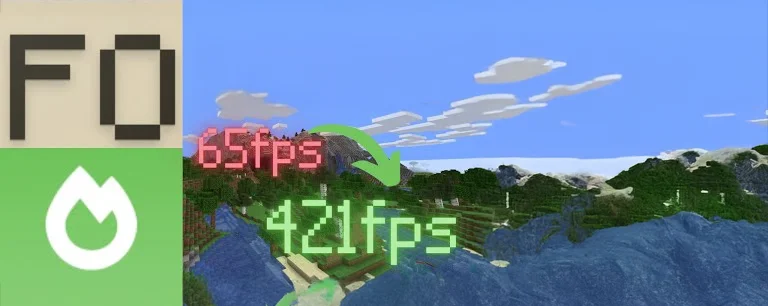
- Modpacks (e.g., Fabulously Optimized): If managing individual mods sounds daunting, consider a modpack. A fantastic open-source example is Fabulously Optimized. This pack is specifically designed to combine the best performance and graphical enhancement mods (including Sodium, Lithium, Phosphor, and Iris for shaders) into one easy-to-install package. It aims for OptiFine parity while remaining entirely open-source and client-side.
- Get Fabulously Optimized here: Fabulously Optimized Website
A Shoutout to MaltaCraft! 🇲🇹

Here in Malta, we have our own vibrant Minecraft community! If you’re looking for local players, servers, and discussions, make sure to check out MaltaCraft.net. It’s a fantastic place to connect with fellow Maltese crafters and explore local servers most of which are offered for FREE!.
Its base is java but allows bedrock players to join as well (though bedrock updates tend to break connections till the gateway is updated)
Join the Open-Source Minecraft Adventure!
The open-source community provides an incredible playground for Minecraft enthusiasts. By embracing these client-side tools, you’re not just customizing your game; you’re becoming part of a global movement that values collaboration, innovation, and accessibility.
At OSSMalta, we encourage you to explore these possibilities. Have you tried any of these mods? What are your favorites? Share your experiences and insights or host a gaming event and share with the OSSMalta community – we’re always here to support open-source and gaming enthusiasts!
How to Install Mods and Modpacks with Prism Launcher (Recommended!) 🛠️
Prism Launcher is a fantastic open-source Minecraft launcher that makes managing multiple instances, mods, and modpacks incredibly easy. It’s our highly recommended way to get started!

1. Get Prism Launcher:
- Download Prism Launcher for your operating system from their official website: PrismLauncher.org. Follow the installation instructions.
2. Adding Individual Mods (e.g., Sodium, JEI):
- Create an Instance: In Prism Launcher, click “Add Instance.” Choose your desired Minecraft version and select a mod loader like Fabric (recommended for most open-source client mods). Give your instance a name and click “OK.”
- Edit Instance: Select your newly created instance and click “Edit” on the right sidebar.
- Go to “Mods” Tab: In the instance settings window, click on the “Mods” tab on the left.
- Download or Drag & Drop:
- Download Directly: Click “Download mods” and you can search for mods from Modrinth or CurseForge directly within Prism Launcher. Select the ones you want and click “Review and confirm.”
- Manual Install: If you’ve already downloaded a
.jarmod file (e.g., from a link above), simply drag and drop the.jarfile directly into the mod list area in Prism Launcher’s “Mods” tab.
- Launch: Once mods are added, close the instance settings and double-click your instance to launch Minecraft!
3. Adding Modpacks (e.g., Fabulously Optimized):
- Add Instance: In Prism Launcher, click “Add Instance” on the top left.
- Import from Modrinth/CurseForge:
- Select the “Modrinth” or “CurseForge” tab on the left.
- Type the name of the modpack (e.g., “Fabulously Optimized”) into the search bar and press Enter.
- Select the modpack from the results and click “OK.” Prism Launcher will download all the necessary files.
- Import from Zip/
.mrpack(if downloaded manually):- Instead of selecting Modrinth/CurseForge, choose “Import from zip” and navigate to the
.zipor.mrpackfile you downloaded.
- Instead of selecting Modrinth/CurseForge, choose “Import from zip” and navigate to the
- Launch: Once the modpack is installed, double-click its icon in Prism Launcher to play!
Tip: Prism Launcher also allows you to easily adjust RAM allocation for each instance (important for modpacks!) by selecting the instance, clicking “Edit,” and going to the “Settings” tab.