

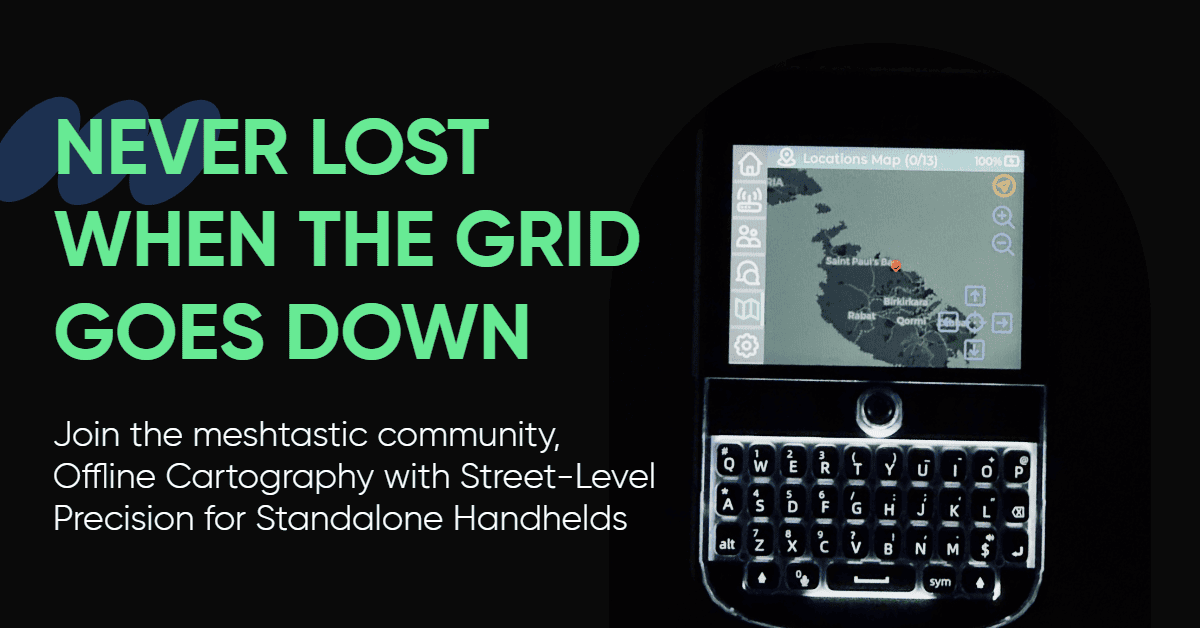
In the world of off-grid communication, situational awareness is everything. The shift toward standalone Meshtastic devices means you no longer need a smartphone to see where your mesh nodes are located. By utilizing the Meshtastic User Interface (MUI), you can now render high-detail, offline maps directly on your hardware.
Whether you are using the rugged LilyGo T-Deck series or the experimental LilyGo T-LoRa Pager, having pre-loaded map tiles is the difference between a simple text-pager and a fully functional tactical navigator.
Why Use Offline Maps on Your Meshtastic Node?
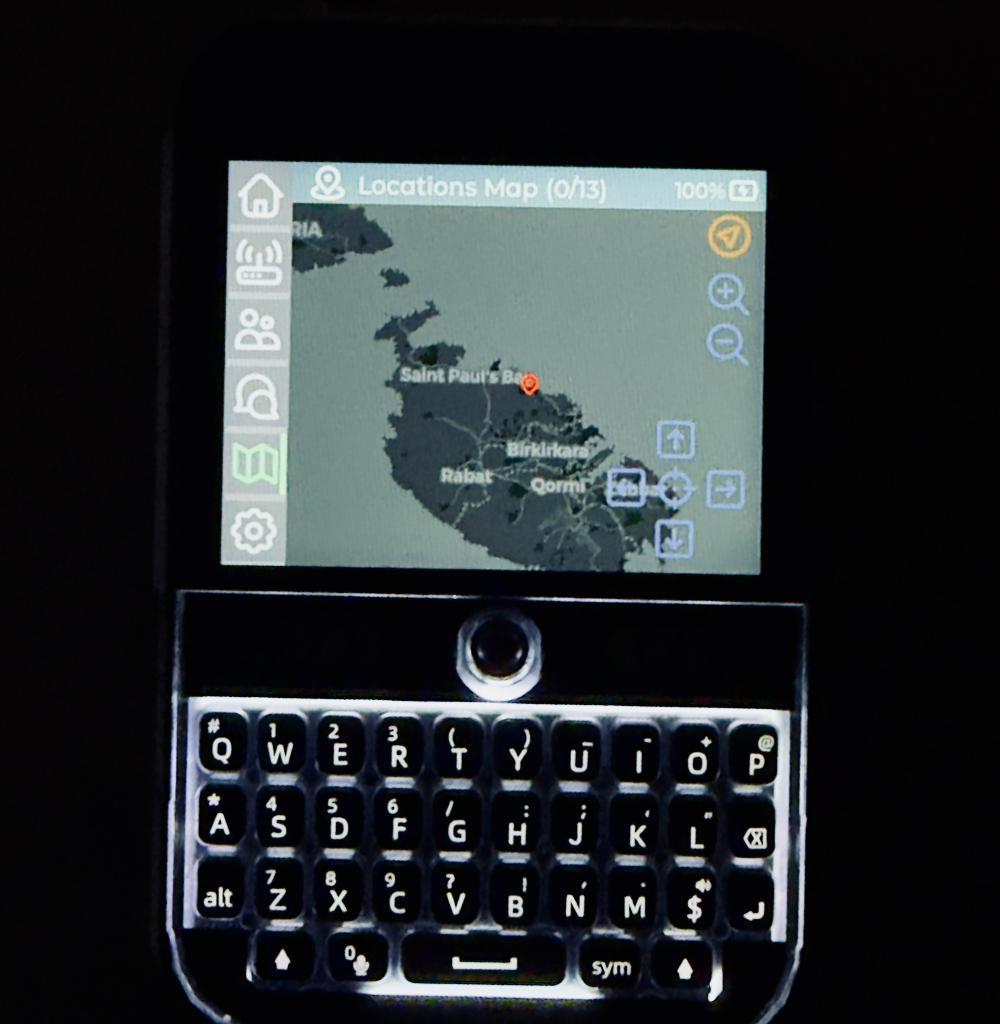
Standard LoRa nodes often rely on a Bluetooth-connected phone to display map data. However, the T-Deck and T-LoRa Pager are designed for independence. By storing map tiles on a microSD card, your device remains fully functional even if your phone dies or is lost. For users in the Maltese archipelago, having “max level detail” (up to zoom level 18) allows for street-level precision in urban areas like Malta’s densely populated towns and cities without needing an internet connection.
Supported Hardware
- LilyGo T-Deck / T-Deck Plus: Fully supported by MUI with a 320 x 240 resolution display.
- LilyGo T-LoRa Pager: Support for the Pager’s 480 x 222 screen is currently in development (experimental), with community efforts actively porting the full-color MUI experience to its vertical aspect ratio.
📥 Download Ready-to-Use Malta & Global Map Packs
We have pre-packaged a comprehensive map set that includes a top-level global view and maximum detail for the Maltese islands. This pack uses the Carto Dark style, which is optimized for high visibility on small TFT screens and reduced power consumption.
How to Load Offline Maps onto Your SD Card
Deploying these maps is straightforward, but it requires patience due to the large number of small files involved.
Step 1: Prepare Your MicroSD Card
MUI supports SD cards formatted with an MBR partition table. While FAT32 is common, exFAT is highly recommended for map storage as it handles large file directories more efficiently.
Step 2: Create the Directory Structure
For MUI to recognize your maps, they must be placed in a specific folder hierarchy on the root of your SD card:
- Create a folder named
maps(lowercase). - Inside
maps, create a subfolder for the style, such asCartoDark. - The final path should look like:
SD_ROOT/maps/CartoDark/
Step 3: Extract the Files
- Right-click your downloaded ZIP and select Extract All.
- Set the destination to the
maps/CartoDark/folder you just created. - Important: This process involves nearly 900,000 files for high-detail maps. Depending on your SD card speed, this may take over an hour. Do not cancel the process if it seems slow.
🛠️ Step-by-Step: Generate Your Own Custom Maps
If you want to generate maps for other regions, you can use the Map Tile Downloader suite. This tool features a built-in web interface, meaning you do not need to manually edit coordinates in the Python script.
1. Running on Windows (Quick Launch Script)
To simplify the process on Windows, we have provided a .bat file that automates the environment setup and launches the downloader.
How to use the Quick Launch script:
- Download the project files from GitHub to a folder on your PC.
- Locate the file
meshtastic maps python.batand right-click it, then select Edit. - Amend the Path: Look for the line:
cd /d C:\Users\warre\map-tile-downloader. Change this path to the exact location where you downloaded the project on your own computer (e.g.,cd /d C:\Meshtastic\map-tile-downloader). - Save the file and double-click it to run.
- The script will automatically activate the virtual environment and start the Python server.
2. Running on Linux and macOS
For users on Linux or Mac, use the terminal to initialize and run the downloader:
- Navigate to the folder:
cd path/to/map-tile-downloader - Create a Virtual Environment:
python3 -m venv.venv - Activate the Environment:
- Linux/Mac:
source.venv/bin/activate
- Linux/Mac:
- Install Dependencies:
pip install -r requirements.txt - Launch:
python3 src/TileDL.py
3. Using the Web Interface
Once the script is running, open your web browser and go to: http://localhost:5000
- Select Style: Choose your preferred map provider (e.g., Carto Dark or OpenStreetMap).
- Define Area: Use the interactive map to select the polygon or bounding box you wish to download.
- Set Zoom: Choose your zoom levels. For street-level detail, include zoom levels up to 18.
- 8-Bit Conversion: Ensure the 8-bit quantization option is enabled to optimize the files for your T-Deck.
Technical Performance & Troubleshooting
Generating hundreds of thousands of tiles is a resource-intensive task.
- System Resources: The process may max out your RAM and CPU during heavy processing.
- Browser Stability: You may encounter browser crashes with “Out of Memory” errors. Do not close the command prompt. The process is still running in the background.
- Checking Progress: Simply refresh the webpage (
F5). Note that the “notification indicator” might appear garbled or broken after a refresh, but it will still accurately show if the script is currently downloading or processing files.